Using Your Client Portal
Your portal holds everything to do with your session. Your photographs, your invoices, your contract and your booking details all live in one place, and you can get to them any time.
Signing in
Go to your client portal sign-in page and enter your email and password.
Use the email address my messages come to. This is the one thing that trips people up. If you sign in with a different address, the portal will not recognise you.
Your password is the one you chose when you first set up your portal.
Forgotten it, or never set one up?
You can sort this out yourself in a minute.
- On the sign-in page, click “Forgotten your password? Reset it here.”
- Enter the email my messages come to.
- I will send you a link to choose a new one.
The email can take a few minutes, so check your spam folder. If nothing arrives at all, I have probably got a slightly different address on file for you. Reply to any of my emails and I will sort it.
Choosing your images
A few days after your shoot, your proofs go into a private gallery and I will email you the link.
There are two marks in the gallery and they do different jobs.
Stars are for working through it. On a first pass, star anything you like the look of. Starring does not order anything, so use them as freely as you want.
The heart is your order. Once you have settled on your favourites, tap the heart on each one you would like me to edit. The hearts are what I work from.
Where the filters are
Look for the three short lines at the top left of the gallery, just to the left of my logo.
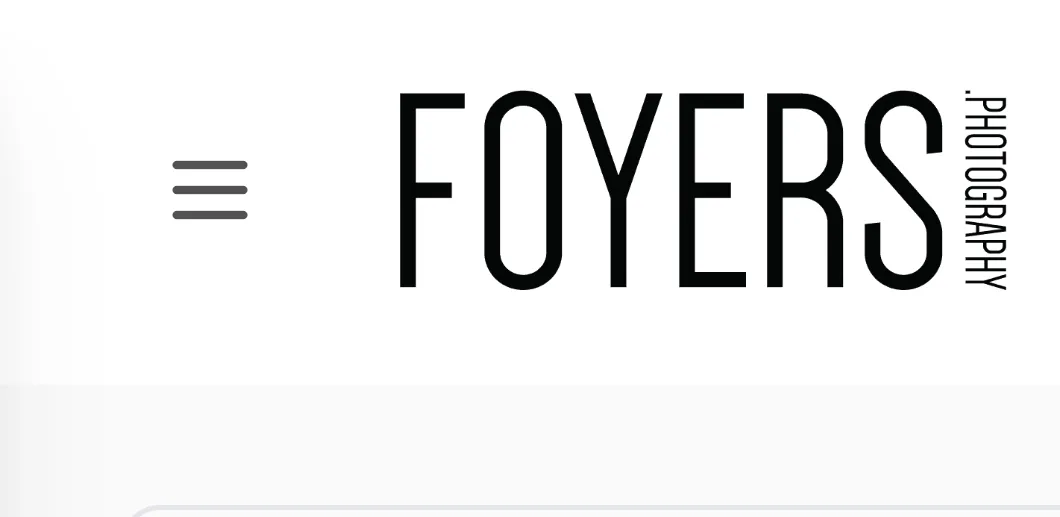
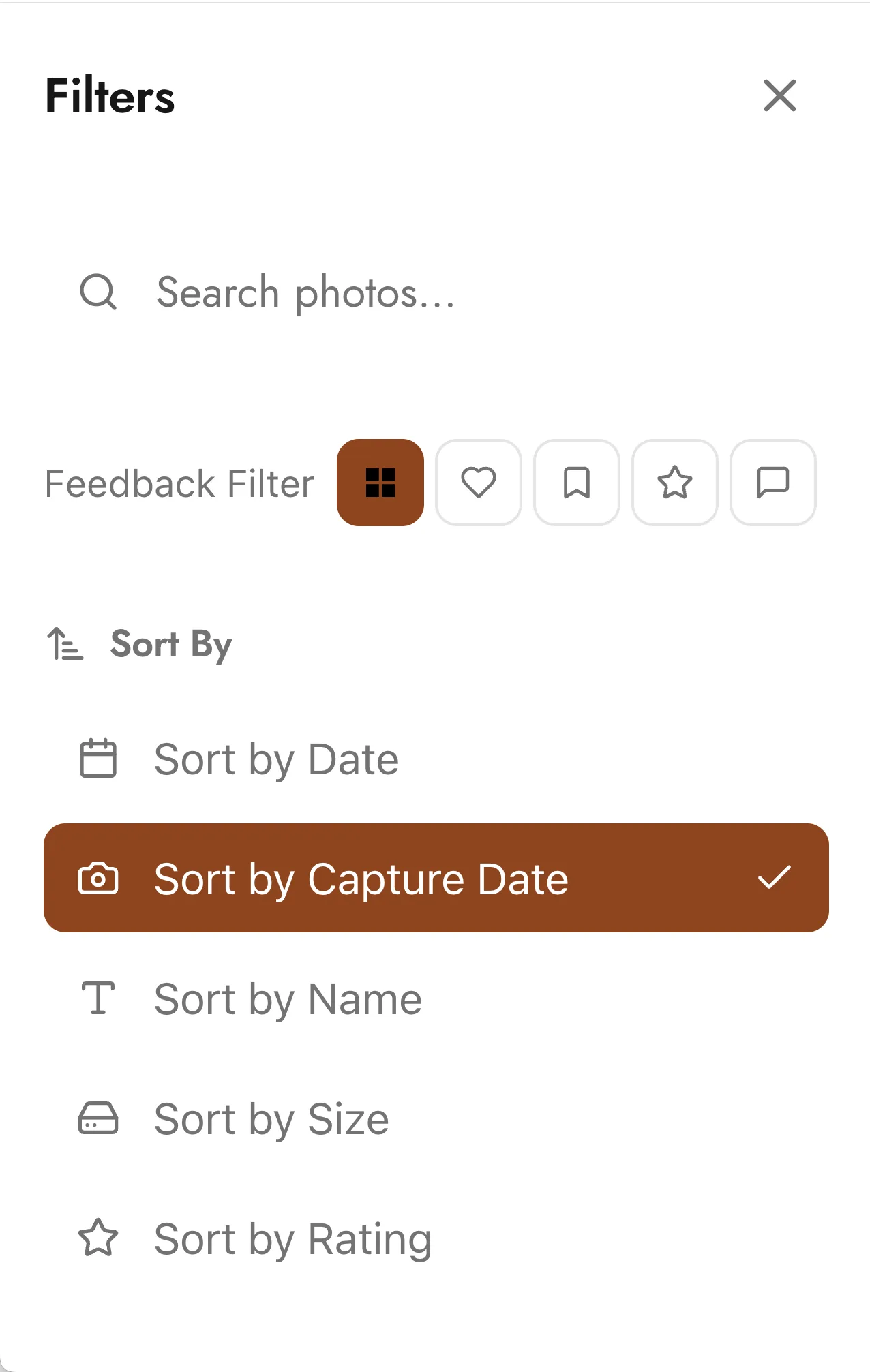
Tap those and a panel opens where you can show only the photographs you have starred, or put your highest-starred first. On a gallery of several hundred images that is the quickest route to a shortlist.
Take your time. Nothing is decided until you say so.
When you are happy, press the button in your portal to say you have finished. That is what tells me to start editing.
Why the proofs look crossed out
Every preview in the gallery carries a faint cross. It is there to stop the photographs being copied and used before they are yours.
It is not on your finished images. What you get at the end is the full quality photograph with nothing across it.
Receiving your finished images
When your images are edited, I will email you a download link.
The link opens a page with one button. It downloads a single zip file holding every finished photograph in high resolution, 4,000 pixels on the longest side, with no watermark, plus versions sized for websites and social media. If you need larger files, just ask me.
If you would like prints or wall art made from your photographs, the sizes and prices are on my prints and wall art page.
Opening a zip file
- On a Mac, double click it and it opens into a folder.
- On Windows, right click it and choose Extract All.
- On a phone, it is worth waiting until you are on wifi. The file is large.
How long you have
The download link works for 90 days. After that the file is removed, but the link keeps working and tells you so, rather than simply failing.
Please save your photographs somewhere safe as soon as they arrive. I keep a copy for at least six months from delivery. If you lose them in that time, reply to any of my emails and I will send a fresh link.
After six months I cannot promise they will still be here. Please do not rely on me as your only copy.
Invoices and paying
Any invoices appear in your portal.
You can pay online by card, including Apple Pay and Google Pay, or by bank transfer using the details on the invoice. Payments update automatically, so there is nothing else for you to do.
Your contract and booking
Your agreed contract and your session details, the date, time and location, are all in the portal, so you can check them any time.
Where your booking allows it, you can reschedule or cancel from there too.
Still stuck?
I would rather you asked
If you get stuck at any point, please do not struggle on. It is usually something small and it takes me a minute to sort.